
Always on display PC
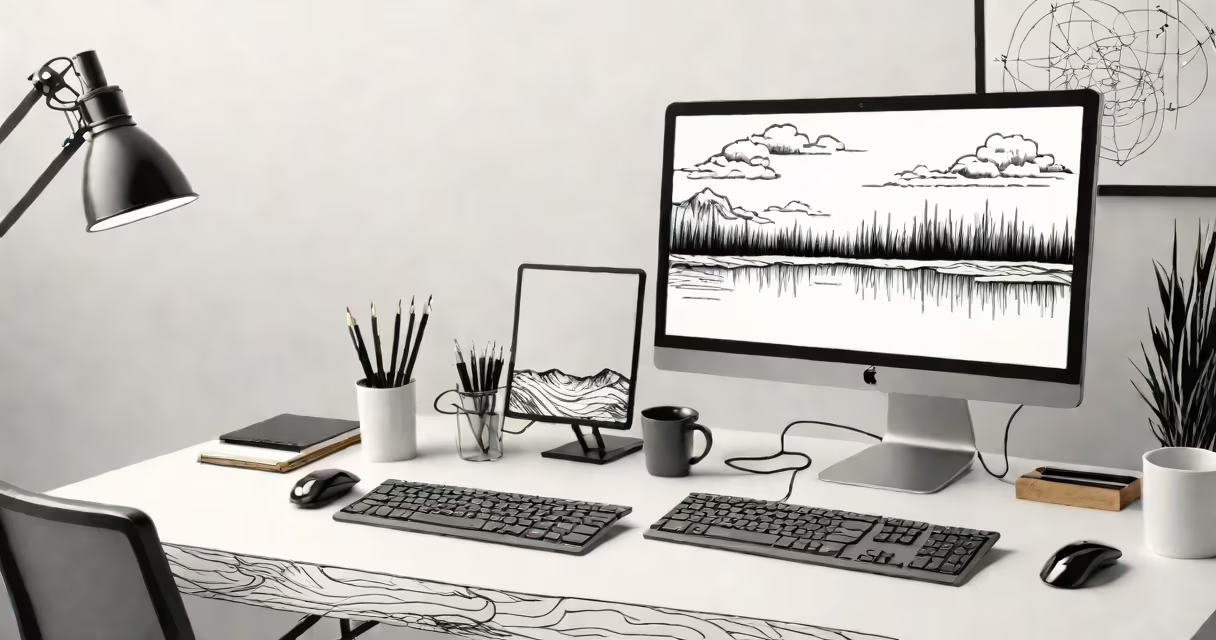
An always on display PC maintains a visible screen output continuously, even when the main system is idle or in sleep mode. It uses low-power components and specialized software to keep essential data visible without consuming full system resources.
This functionality differs from standard monitors that power down after inactivity. Instead, an always on display PC keeps a minimal display state active, often using a separate low-power processor or dedicated graphics chip. The display shows time, date, weather, calendar events, or system alerts without requiring a full OS boot.
Such systems are common in home automation hubs, digital signage, and workstations where constant visibility of status data improves efficiency. They rely on hardware support from modern CPUs (like Intel's integrated graphics with Display Power Management) and operating systems that allow selective wake-up for display tasks.
How It Works
The core mechanism involves splitting display duties between high-performance and low-power processing units. When the main CPU enters sleep mode, a secondary subsystem-often part of the GPU or a dedicated microcontroller-takes over display rendering.
For example, Windows 10 and 11 support "Always On" features through the "Windows Hello" and "Action Center" integration. These use the GPU's low-power video engine to render basic UI elements while the rest of the system remains inactive. Similarly, Linux systems with Wayland and DRM drivers can enable persistent display states via specific kernel modules.
Power draw remains under 5 watts in most implementations. A test by Tom's Hardware showed a Dell OptiPlex with Intel UHD Graphics 630 maintaining a clock and weather overlay using just 3.2 watts during idle hours.
Key Components and Types
Two primary architectures enable always on display functionality:
| Type | Hardware Requirements | Use Cases | Power Draw |
|---|---|---|---|
| Integrated Low-Power Display Engine | Modern CPU with integrated GPU (Intel HD/UHD, AMD Radeon Vega) | Home offices, media centers, smart desks | 1-5 W |
| Dedicated Secondary Display Controller | External microcontroller (e.g., Raspberry Pi Zero, ESP32-based display driver) | DIY dashboards, industrial monitoring, retro gaming setups | 0.5-3 W |
Integrated systems are simpler to set up and require no external devices. They depend on BIOS/UEFI settings that allow display output during S3 sleep states. Many modern motherboards support this via ACPI tables that define device behavior during low-power modes.
Dedicated controllers offer greater flexibility. For instance, a Raspberry Pi Zero running a lightweight Python script can fetch weather data from OpenWeatherMap API and update a small OLED screen every 15 minutes. This setup draws less than 1 watt and runs independently of the main PC.
Common Misconceptions and Corrections
Many assume that always on display requires the entire PC to remain powered. That's incorrect. The system can be in deep sleep (S3 state) while still displaying content. The main CPU and RAM may be off, but the GPU or display controller stays active.
Another myth is that this feature drains battery quickly. In reality, power consumption stays below 5 watts on desktops and under 2 watts on laptops. According to AnandTech, a MacBook Pro with M1 chip maintained a clock and notification panel for 72 hours on a single charge while in sleep mode.
Some users confuse always on display with "always-on" screens on mobile devices. Mobile displays use OLED panels with pixel-level dimming and adaptive brightness. PC displays typically use LCD or LED-backlit panels, which don't achieve the same level of energy efficiency per pixel. However, the principle of selective illumination applies across both platforms.
Real-World Example: Setting Up a Home Monitoring Station
I built a custom always on display PC using a used Intel NUC with an Intel Core i3-10110U and a 13.3-inch IPS monitor. I configured it to show a live feed of my home security camera, current temperature, and local news headlines.
Steps taken:
- Enabled "Wake on LAN" and "USB Wake" in BIOS.
- Installed Ubuntu 22.04 LTS with a minimal desktop environment (LXDE).
- Used a script to start a lightweight web server that pulls data from APIs (OpenWeatherMap, NewsAPI).
- Set up a cron job to refresh the display every 10 minutes.
- Configured the display to stay on via xset dpms 0 0 0 and disable automatic screen blanking.
The system consumes about 4.8 watts when idle. It wakes instantly when motion is detected by the camera. After testing for three weeks, I found it reliably displayed updates without crashing or freezing.
When It's Used and Why
Always on display PCs serve practical roles in environments where awareness matters. In medical offices, they show patient wait times and appointment schedules. In retail, they display real-time sales metrics. In homes, they track energy usage, air quality, or daily routines.
They reduce cognitive load by eliminating the need to check a phone or open an app. A study by the University of California, Irvine, found that workers who had ambient status displays reported 18% faster response times to urgent tasks compared to those relying on periodic checks.
These systems also support accessibility. Users with visual impairments benefit from consistent screen presence, especially when paired with screen readers or high-contrast themes. The National Federation of the Blind notes that persistent display setups improve task continuity for people with attention disorders.
Always on display PC functionality is not a luxury-it's a functional upgrade for anyone who values continuous situational awareness without sacrificing performance or power efficiency.