
Print Screen Windows 10
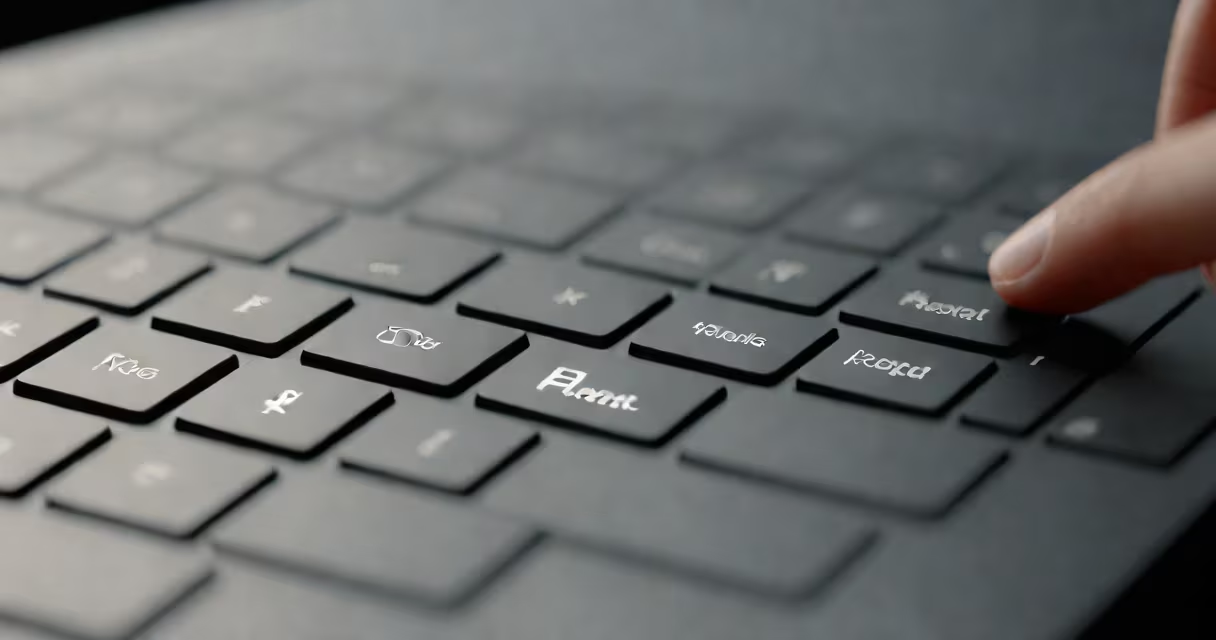
The Print Screen key on Windows 10 captures a still image of your entire screen and copies it to the clipboard. Pressing Alt + Print Screen captures only the active window. The image remains in memory until pasted into an app like Paint, Word, or an email.
When you press Print Screen, the system takes a snapshot of everything visible on your display. This includes open windows, desktop icons, and any content in the taskbar. The image doesn't appear on screen-it's stored temporarily in the clipboard. You must paste it into another program to view or save it.
Windows 10 also supports saving screenshots directly to file using the Win + Print Screen shortcut. This saves the full screen image to the Pictures folder under the "Screenshots" subfolder. This method bypasses the clipboard entirely and creates a permanent file.
How It Works
Pressing Print Screen sends a signal to the operating system's graphics subsystem. The OS then renders a copy of the current frame buffer-the raw data displayed on your monitor-and stores it in a temporary memory area called the clipboard. This process happens in milliseconds.
Pasting the screenshot requires an application that supports image input. Programs like Microsoft Paint, Word, PowerPoint, or image editors such as Photoshop read the clipboard data and render it as a bitmap. Without pasting, the screenshot is lost when the clipboard is overwritten.
Some apps automatically detect clipboard changes and insert images when you press Ctrl + V. Others require manual paste actions. Always verify the destination app supports image pasting before assuming the screenshot appears correctly.
Types of Screenshot Methods
Windows 10 offers multiple ways to capture screens. The most common involve keyboard shortcuts:
| Shortcut | What It Captures | Where It Goes |
|---|---|---|
| Print Screen | Entire screen | Clipboard only |
| Alt + Print Screen | Active window only | Clipboard only |
| Win + Print Screen | Full screen | File saved to Pictures\Screenshots |
| Win + Shift + S | Custom region | Clipboard with Snip & Sketch launcher |
Using Win + Shift + S opens the Snip & Sketch tool, which lets you select a portion of the screen. After selection, the image goes to the clipboard and a notification appears. You can then paste it or edit it directly in the app.
For users who rely on accessibility tools, the Print Screen function works with screen readers like Narrator. When Narrator is active, pressing Print Screen still captures the screen, though the user may not hear confirmation unless audio feedback is enabled.
Common Misconceptions and Mistakes
Many users assume that pressing Print Screen automatically saves a file. This is false. The image exists only in the clipboard until pasted or saved manually. If you don't paste it quickly, the clipboard can be overwritten by new copied content.
Another error is confusing Print Screen with the camera icon on the keyboard. Some laptops place a camera symbol near the Print Screen key. This is often a function key used to launch camera apps, not a screenshot tool. Confusing the two leads to accidental app launches instead of screen captures.
A lesser-known fact: if you're using a dual-monitor setup, Print Screen captures both screens as one image. The result is a single screenshot spanning both displays. This behavior differs from some older systems that only captured the primary monitor.
Real-World Example
Suppose you're troubleshooting a software error and need to show a developer the exact message. Open the app, reproduce the error, and press Alt + Print Screen. Open Microsoft Word, press Ctrl + V, and the image appears. Save the document as a PDF to send via email.
If you want to keep a record, use Win + Print Screen instead. The system automatically saves the image as a PNG file in C:\Users\[YourName]\Pictures\Screenshots\. The filename follows the format Screenshot (1).png, incrementing with each new capture.
On a Surface Pro with touch screen, the Print Screen key may not work reliably if the device is in tablet mode. In such cases, use Win + Shift + S to ensure consistent results across modes.
Related Tools and Differences
Windows 10's Print Screen functionality is similar to Windows 11, but the newer OS adds enhanced integration with the Snipping Tool and cloud sync. If you upgrade, you'll find faster access to recent screenshots and better organization. Still, the core Print Screen behavior remains unchanged.
After testing various setups, including a Dell Latitude with a non-standard keyboard layout, I found that some third-party keyboards lack a dedicated Print Screen key. On those devices, the function is mapped to Fn + F15 or a combination involving the SysRq key. Using a standard keyboard avoids confusion.
Always test your screenshot method before sending critical reports. A missing image due to clipboard overwrite can delay workflows. Keep a backup method ready-such as Win + Shift + S-for reliability.
Understanding how Print Screen Windows 10 works prevents frustration and improves productivity. creating tutorials, mastering these shortcuts ensures accuracy and speed.