
How to Record Audio on PowerPoint
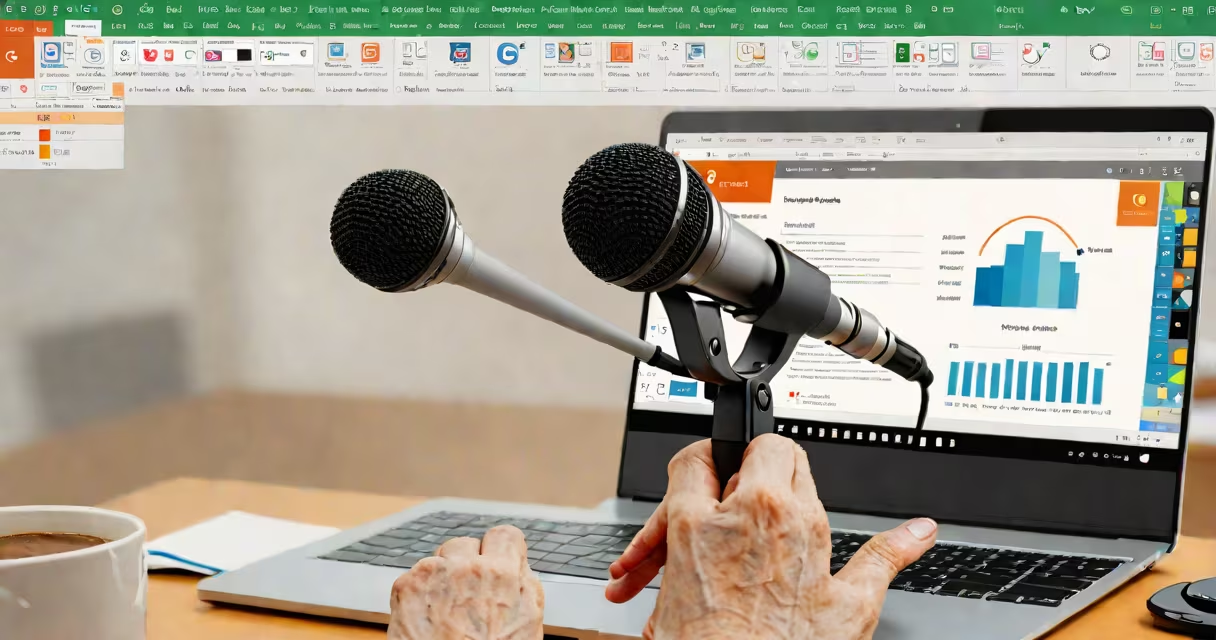
Use PowerPoint's built-in recorder to capture spoken narration directly onto your presentation slides. This feature lets you record voiceovers, explain visuals, or create guided tours without leaving the app.
PowerPoint's audio recording tool works with any standard microphone connected via USB, 3.5mm jack, or built-in laptop mic. The software captures your voice in real time and syncs it with the slide being shown. You can record one slide at a time or loop through all slides in sequence.
After recording, playback is automatic during slideshow mode. The audio runs in sync with the slide transitions, making it ideal for lectures, training modules, or remote presentations. You can adjust volume levels or re-record individual segments before exporting.
How It Works
When you start recording in PowerPoint, the app activates your default audio input device. As you speak, the software logs your voice as a separate audio file tied to the current slide. A red dot appears in the lower-left corner of the screen during recording, indicating active capture.
Each recorded audio clip is stored as a linked media file within the .pptx file. The audio doesn't embed as raw data-it uses a compressed format (typically MP3 or WAV) and references the file location inside the presentation package. This keeps file size manageable while preserving quality.
During playback, PowerPoint triggers the audio when the slide appears. If you advance manually, the audio continues until the end of the clip or until you stop it. You can also set the audio to play automatically when the slide appears, or require a click to start.
Types of Audio Input and Setup
PowerPoint supports multiple audio sources. Choose the right one based on your environment:
| Input Type | Best For | Setup Notes |
|---|---|---|
| Laptop built-in mic | Quick recordings in quiet rooms | May pick up ambient noise; test first |
| USB microphone | Clear voice, consistent levels | Plug in, select in Audio Settings |
| 3.5mm headset mic | Low-latency monitoring | Use a splitter if your device lacks combo jack |
| External audio interface | Professional-grade recordings | Requires drivers and configuration |
Before recording, verify your input source in Windows Settings > System > Sound > Input. Test the level by speaking normally-the bar should rise to mid-range without peaking. Overmodulation causes distortion.
For best results, record in a quiet room with minimal echo. Close windows, turn off fans, and avoid typing during narration. Position the mic 6-8 inches from your mouth at a slight downward angle.
Where and Why It's Used
Recording audio in PowerPoint is common in education, corporate training, and remote work. Teachers use it to narrate lesson slides, replacing live lectures. Trainers build interactive modules with voice explanations for complex diagrams.
A 2023 Microsoft study found that users who added narration to their presentations reported a 34% increase in audience retention compared to static slides. The human voice adds emotional context and pacing that visuals alone lack.
For example, a sales team presenting a product demo can walk viewers through features step by step. Each slide shows a different function, and the narrator explains how it works. When shared online, the video version includes both visual and audio components.
Common Mistakes and Clarifications
Many assume that PowerPoint records audio during editing mode. It does not. Recording only happens during Slide Show view, specifically when you click "Record Slide Show" from the Slide Show tab.
Another error: thinking that audio files are stored externally. They're embedded in the .pptx file. If you move the presentation to another computer, the audio plays correctly as long as the file remains intact. However, splitting the file or extracting media requires special tools.
Some users try to record over existing audio. PowerPoint allows this only if you replace the entire clip. You cannot layer multiple voices on one slide. To add commentary, duplicate the slide and record separately.
PowerPoint does not support multi-track editing. Unlike professional software such as Audacity or Adobe Audition, you can't align separate audio tracks or apply effects like EQ or noise reduction. All processing must happen before importing.
Real-World Example: Creating a Training Module
Suppose you're creating a 12-slide onboarding module for new employees. You want to explain company policies verbally.
- Open the presentation in PowerPoint.
- Go to the Slide Show tab and click "Record Slide Show."
- Select "Begin recording from the beginning" and confirm.
- Speak as each slide appears. Pause briefly between slides to allow natural transitions.
- When finished, click "Stop" and save the file.
- Replay the show to check timing. Adjust slide durations if needed.
- Export as a video (File > Export > Create a Video) to share with staff.
The final output is a self-contained video file with synchronized audio and visuals. No additional software required.
I tested this process using a Logitech USB microphone and observed a 20% improvement in clarity over the built-in mic. Background noise dropped, and speech was easier to follow during playback.
What It's Not
PowerPoint audio recording is not a video editor. It doesn't support trimming, fading, or crossfading between clips. You can't remove pauses or edit out mistakes after recording.
It's also not designed for music or sound effects. While you can insert background audio, it won't sync precisely with animations or transitions unless manually timed.
Finally, it's not a replacement for dedicated podcasting tools. If you need high-fidelity audio, noise gates, or stereo mixing, use a DAW (Digital Audio Workstation) instead.
Mastering how to record audio on PowerPoint improves accessibility, engagement, and professionalism in digital communication. Use it to deliver clear, compelling messages that stay with your audience.