
Screen recorder pro
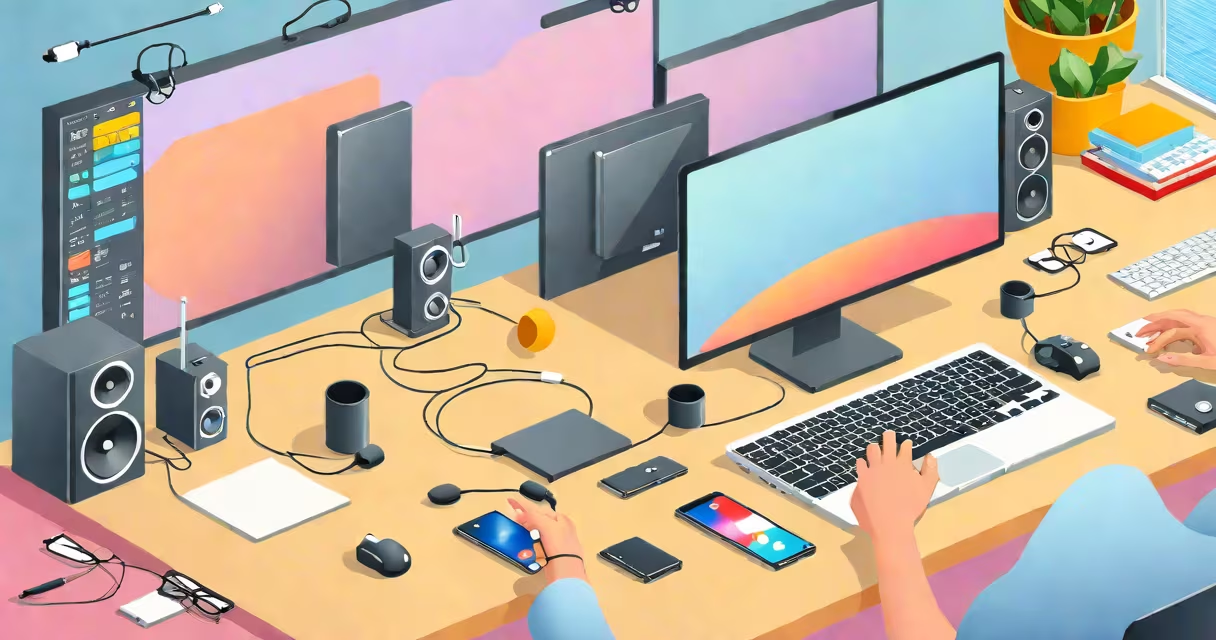
Screen recorder pro is a desktop application designed to capture everything displayed on your computer screen, including cursor movements, window changes, and system audio or microphone input, all in high resolution and with minimal latency. It's used by educators, software developers, customer support teams, and content creators who need accurate, polished recordings for documentation, training, or sharing.
These tools record every pixel movement on your display in real time. They capture both visual output and audio-either system sound (like music or video playback) or live mic input-then combine them into a single video file. Most screen recorder pro apps allow you to start and stop recording with keyboard shortcuts, offer real-time preview, and export files in common formats like MP4, AVI, or MOV.
Unlike basic screen capture utilities, screen recorder pro applications typically include advanced features such as scheduled recording, region selection, webcam overlay, annotation tools, and post-production editing within the app itself. They're optimized for performance, ensuring minimal impact on CPU and RAM during long sessions.
How screen recorder pro works
When activated, screen recorder pro accesses your graphics driver through a privileged API-such as DirectX, Vulkan, or macOS's Core Animation-to read pixel data directly from the GPU. This bypasses the need to render frames through the operating system's compositor, reducing lag and preventing dropped frames.
Audio is captured via separate drivers. System audio is routed through virtual audio devices (like VB-Cable or BlackHole on Mac), while microphone input uses standard audio input devices. The app synchronizes both streams using a shared timestamp, ensuring perfect alignment between visuals and sound.
Once recording ends, the software compresses the raw video and audio data into a compressed container format. For example, a 10-minute recording at 1080p60 with stereo audio may produce a 250 MB MP4 file using H.264 encoding and AAC audio.
Types and capabilities
Screen recorder pro tools fall into three functional categories based on their feature set:
| Type | Primary Use Case | Key Features | Examples |
|---|---|---|---|
| Basic | Quick demos, short clips | Full-screen capture, basic audio, simple export | QuickTime Player (Mac), Xbox Game Bar (Windows) |
| Intermediate | Training videos, webinars | Region selection, webcam overlay, basic editing, scheduled recording | Camtasia, OBS Studio (with plugins) |
| Pro | Professional content, software tutorials, compliance recording | High frame rate support, lossless audio, metadata tagging, secure storage, team collaboration | ScreenFlow (Mac), Bandicam, ActivePresenter |
Pro-level screen recorder pro tools often support 4K at 60fps, hardware-accelerated encoding (using NVENC or Apple VideoToolbox), and multi-track audio mixing. Some even integrate with cloud services for automatic backup and version control.
Common misconceptions and corrections
Many users assume that screen recorder pro tools are limited to recording gameplay or software walkthroughs. In reality, they're widely used in regulated industries-healthcare, finance, legal-for audit trails. A doctor using telemedicine software might record a consultation session to comply with HIPAA requirements, where every interaction must be documented.
Another misconception is that screen recorder pro software always requires a useful machine. While high-resolution or high-frame-rate recording does demand resources, most modern screen recorder pro apps use efficient codecs and adaptive bitrate settings. A 2023 benchmark by Tom's Hardware showed that Bandicam recorded 1080p60 video with 3% CPU usage on a mid-tier Intel i5 laptop.
A less obvious but critical point: screen recorder pro tools do not inherently encrypt recordings. Data stored locally or uploaded to cloud services may be accessible to anyone with access to the device or account. Always verify encryption settings and password protection options before storing sensitive material.
Real-world example: creating a training module
I once used ScreenFlow (a screen recorder pro tool) to create a 12-minute tutorial on using Adobe After Effects for a client. The process began with setting up a 1920x1080 canvas at 30fps. I selected the "Record Window" mode to focus only on the After Effects workspace, avoiding distractions from other open apps.
System audio was routed through BlackHole (a virtual audio cable), allowing me to capture both the program's internal sounds and my narration via a USB condenser mic. I used the built-in timeline editor to trim dead air, add captions, and insert zoom effects on key interface elements.
The final export used H.264 encoding at 8 Mbps, resulting in a 142 MB file. I uploaded it to a private Vimeo link with password protection and embedded it into the client's learning management system. The feedback noted that the clarity and pacing were far better than previous unedited screencasts.
Screen recorder pro is not a single product-it's a category of software built for accuracy, efficiency, and flexibility. archiving a complex workflow, choosing the right screen recorder pro tool improves clarity, reduces revision cycles, and ensures consistency across outputs.