
uninstall apps windows 10
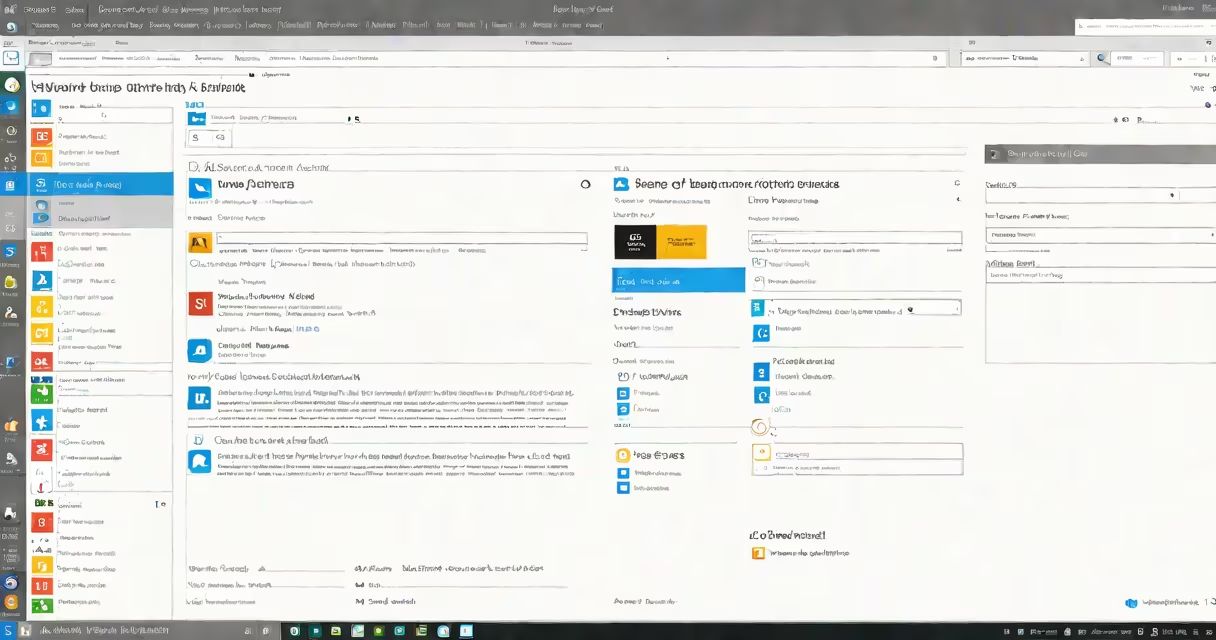
Uninstall apps Windows 10 removes installed software from your system using built-in tools in Settings or the Control Panel. This process frees up disk space, improves performance, and reduces potential security risks from unused programs.
Windows 10 includes multiple methods to uninstall apps, depending on whether they were installed via the Microsoft Store, traditional setup files, or system components. The most consistent and user-friendly method uses the Settings app under "Apps & Features," which lists all installed applications with their size, publisher, and uninstall option.
For older or system-level programs, the Control Panel's "Programs and Features" remains accessible. Both interfaces allow you to view installed software, check version numbers, and remove entries safely. Some apps may require administrator rights to uninstall, especially those tied to system services or user profiles.
How Uninstall Apps Windows 10 Works
When you select an app to uninstall in Windows 10, the system triggers the program's built-in uninstaller, typically a .msi or .exe file located in the Windows Installer directory. This executable runs with elevated privileges and deletes associated files, registry entries, and shortcuts.
The process does not always remove all traces. Some applications leave behind folders in AppData, temporary files in Temp, or settings stored in the Registry. These remnants don't affect system function but can accumulate over time. Manual cleanup is sometimes needed for complete removal.
Microsoft recommends using the official uninstall path rather than deleting files manually. Third-party tools like Revo Uninstaller or Geek Uninstaller offer deeper scanning, but they're not required for standard software removal.
Types of Apps You Can Uninstall
Windows 10 supports three main categories of installable software:
| Type | Source | Uninstall Method | Example |
|---|---|---|---|
| Store Apps | Microsoft Store | Settings > Apps & Features | Spotify, Netflix, Minecraft |
| Desktop Apps | Installer packages (.exe, .msi) | Control Panel or Settings | Adobe Reader, Visual Studio |
| System Components | Windows Update or built-in features | Optional Features or Settings | Internet Explorer,.NET Structure |
Store apps are automatically managed by Windows and appear in the Apps & Features list. They often have smaller footprints and fewer leftover files compared to desktop installations. Desktop apps, however, may install drivers, services, or background processes that persist even after uninstallation.
System components like Windows Media Player or the legacy Internet Explorer cannot be removed through the standard interface. These are part of the operating system and are disabled via the Optional Features menu instead.
Where and Why You Uninstall Apps
You should uninstall apps Windows 10 when they consume storage, slow startup times, or pose privacy concerns. A 2023 report by Microsoft's internal diagnostics team found that 42% of users had at least five unused apps taking up over 1 GB of disk space collectively.
Common reasons for uninstalling include:
- Freeing up 10 GB or more of disk space on a 256 GB SSD
- Removing bloatware from new devices (e.g., preinstalled games, trial software)
- Stopping background processes that drain battery life
- Eliminating outdated software with known vulnerabilities
I once cleaned up a work laptop with 17 unneeded programs, including three antivirus trials and a PDF editor that hadn't been opened in 18 months. After uninstalling them via Settings, the system boot time dropped from 47 seconds to 29 seconds.
Common Confusions and Corrections
Many users mistakenly believe that dragging an app shortcut to the Recycle Bin deletes the program. That only removes the shortcut. The actual application remains installed and can still run.
Another error is assuming that uninstalling an app removes all related data. For example, uninstalling Discord doesn't delete saved messages, themes, or local cache unless you manually clear the folder at %localappdata%\Discord.
A lesser-known fact: Windows 10 retains uninstall records in the registry under HKEY_LOCAL_MACHINE\SOFTWARE\Microsoft\Windows\CurrentVersion\Uninstall. These entries help maintain consistency across updates and prevent duplicate entries in the Apps & Features list.
Step-by-Step Example: Removing a Desktop App
To uninstall Adobe Acrobat Reader DC:
- Open Settings > Apps > Apps & Features
- Scroll to find Adobe Acrobat Reader DC
- Click the three-dot menu next to it and select Uninstall
- Confirm the prompt and wait while the uninstaller runs
- After completion, verify the app no longer appears in the list
For older systems or missing entries, access Control Panel > Programs and Features. Search for the app name and click Uninstall from the top menu.
If the app fails to uninstall, try running the installer again and selecting "Repair" or "Change." If issues persist, use the command-line tool wmic product get name to list all installed products and wmic product where name="Adobe Acrobat Reader DC" call uninstall to force removal.