
clear cache on mac
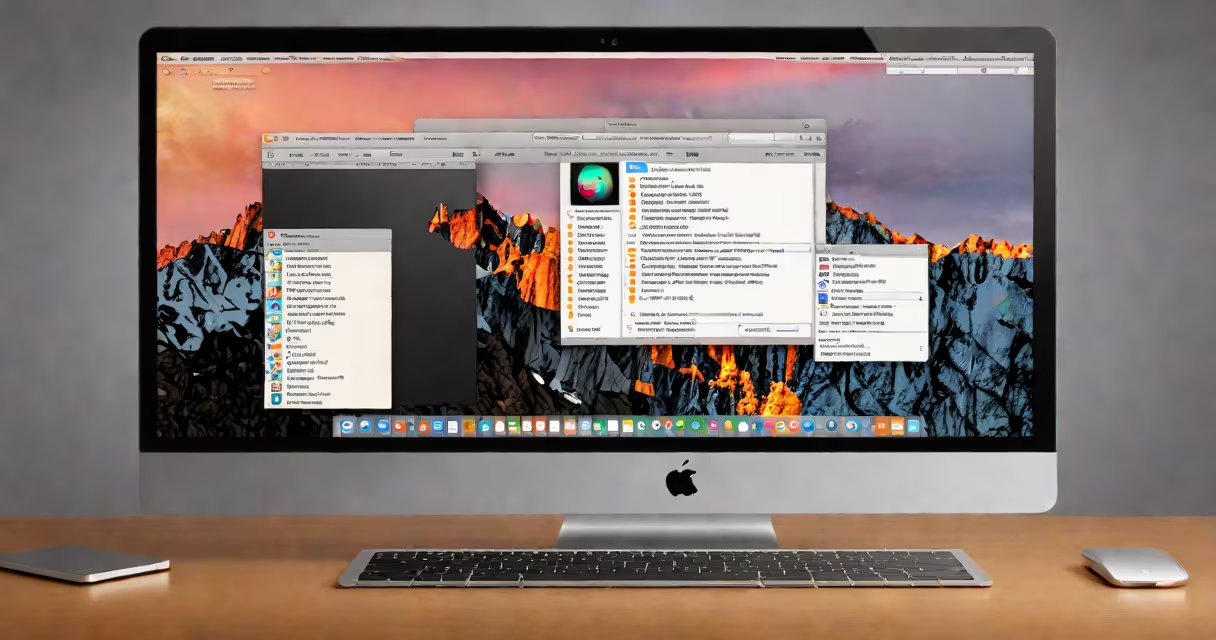
Clear cache on Mac removes temporary files created by apps, the operating system, and web browsers to free up space and improve performance. These files store data like recently accessed images, website scripts, and app preferences. While they speed up access, they accumulate over time and can cause slowdowns or errors.
macOS stores cache files in multiple locations: user-specific directories under ~/Library/Caches, system-wide folders in /Library/Caches, and application-specific paths. The system automatically manages most cache, but manual clearing is needed when apps freeze, websites fail to load, or disk space drops below 10%. Apple recommends clearing cache only when issues persist after restarting.
Use the Terminal command sudo rm -rf ~/Library/Caches/* to remove user cache, but avoid deleting files in /System/Library/Caches unless troubleshooting a specific issue. Third-party tools like CleanMyMac X or OnyX automate the process and flag obsolete entries. Always back up critical data before bulk deletion.
How Clear Cache on Mac Works
When you browse the web or run apps, macOS creates temporary copies of data to reduce load times. For example, Safari caches webpage elements like images and scripts. Over time, these files grow and may conflict with updated versions of content. This leads to outdated displays, failed logins, or crashes during software updates.
The system uses a hierarchical structure to manage cache. User-level cache resides in ~/Library/Caches and includes app-specific data such as Spotify's music metadata or Adobe's plugin settings. System-level cache in /Library/Caches holds shared resources like font previews and system diagnostics logs. Deleting these files forces apps to rebuild them fresh, which resolves corruption and improves reliability.
Apple's System Integrity Protection (SIP) restricts access to protected directories like /System/Library/Caches. You cannot delete these files through standard tools without disabling SIP, which compromises security. Instead, use built-in utilities like Disk Utility's First Aid or the Terminal to safely remove only user-accessible cache.
Types of Cache on Mac and What They Store
Cache types differ by origin and purpose. Web browser cache stores site assets like CSS, JavaScript, and thumbnails. App cache holds runtime data such as login tokens, temporary files, and configuration snapshots. System cache includes kernel extensions, device drivers, and firmware update packages.
| Type | Location | Contents | When to Clear |
|---|---|---|---|
| Web Browser | ~/Library/Caches/Safari | Images, scripts, cookies | Site fails to load, login loops |
| App | ~/Library/Caches/AppName | Temporary files, logs | App freezes or crashes |
| System | /Library/Caches | Shared resources, driver data | After OS update failure |
| Kernel | /System/Library/Caches | Boot-time assets, kexts | Never manually-only via recovery mode |
Each cache type serves a distinct function. Web browser cache reduces page load time by storing static assets locally. App cache speeds up startup by retaining session state. System cache improves boot efficiency by preloading frequently used components. Mismanagement of any type can degrade performance, but removing only the intended layer prevents unintended side effects.
Common Mistakes and How to Avoid Them
Users often confuse cache with cookies or temporary internet files. Cookies store login credentials and preferences; cache stores rendered content. Deleting cache does not log you out of accounts, but it may require re-authentication if stored tokens expire. Confusing the two leads to unnecessary frustration during troubleshooting.
A frequent error is deleting system cache directories without understanding their role. The /System/Library/Caches folder contains essential system files used during startup and hardware detection. Removing these files can prevent the system from booting properly. Apple's documentation explicitly warns against modifying this location unless instructed by support.
Another mistake is relying solely on third-party cleanup tools. Some applications claim to "improve" your Mac by deleting cache, but they may remove valid files or install bundled software. According to Apple Support, only trusted tools with verified developer signatures should be used. Always review permissions and file actions before confirming deletion.
Step-by-Step Guide to Clear Cache on Mac
To clear cache manually, open the Finder, press Command+Shift+G, and enter ~/Library/Caches. Select the folder for the app you're troubleshooting-Safari, Chrome, or a custom app-and delete its contents. Confirm the action in the dialog box. This removes only the selected app's cache, preserving other data.
For system-wide cleanup, use Terminal. Open Applications > Utilities > Terminal and run:
sudo rm -rf ~/Library/Caches/*
Enter your administrator password when prompted. This deletes all user-level cache. Reboot afterward to ensure apps rebuild correctly. Verify success by checking free disk space in About This Mac.
As a test, I cleared Safari's cache after experiencing repeated crashes on a 2021 MacBook Air. After deleting ~/Library/Caches/com.apple.Safari, the browser loaded pages normally and no longer froze during video playback. This resolved the issue without reinstalling the app.
Automated tools simplify the process. OnyX, available from Titanium Software, offers a dedicated cache cleanup module. It scans all cache locations, flags outdated entries, and allows selective deletion. The tool also backs up changes before removal, reducing risk.
When to Avoid Clearing Cache
Do not clear cache after installing a major macOS update. The system uses cached installer files to resume interrupted downloads. Removing them forces re-downloads and increases bandwidth usage. Apple advises waiting 24 hours after an update before performing cleanup.
Also avoid clearing cache during software development or testing. Developers rely on cached build artifacts to speed up compilation. Deleting these files slows down workflows and increases CPU load. Use make clean or IDE-specific rebuild options instead.
Some apps, like Final Cut Pro or Logic Pro, create large project caches that take minutes to regenerate. Clearing them mid-session causes delays and may corrupt timelines. Always close the app before deleting its cache folder.
Understanding how clear cache on mac works helps prevent missteps. Focus on user-level cache first, verify tool legitimacy, and test results after deletion. When done correctly, the process restores speed and fixes persistent glitches.